Buildium integration
Overview
The primary function is to keep the Showdigs inventory aligned with the inventory in Buildium. This means that new properties that are added to Buildium are automatically created in Showdigs. You will also have the ability to sync listing-related information from Buildium at the press of a button, to assist with building a listing in Showdigs.
How do I set it up?
Step 1
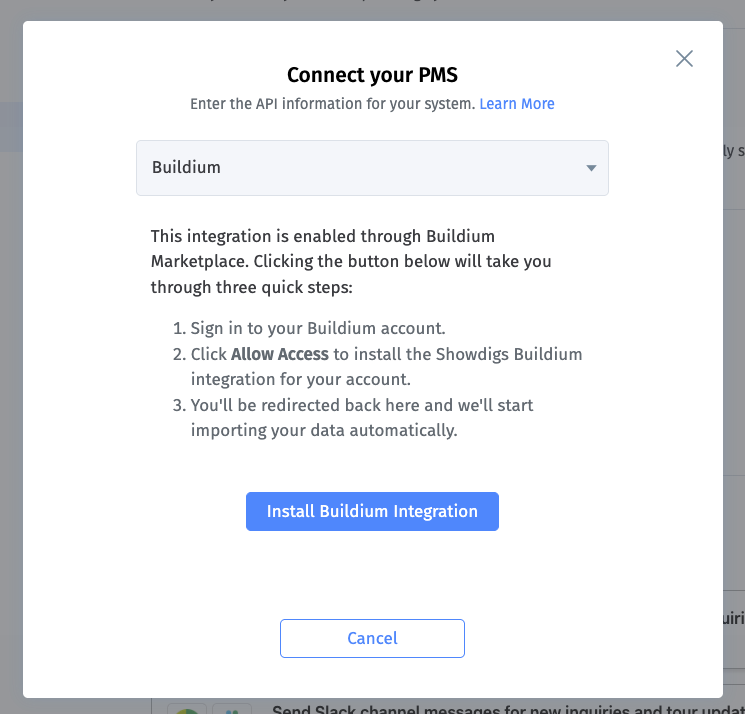
This integration is enabled through Buildium Marketplace, so start by signing into your Buildium account, and go to the Buildium Marketplace.
Alternatively, you can start in Showdigs. Go to Settings > Integrations > Connect your PMS. You'll find a button there that will take you directly to the Showdigs integration in the Buildium Marketplace.
Step 2
Go to the Buildium Marketplace and find the Showdigs integration.
Step 3
Enable the integration and click Allow Access.
Step 4
You'll be redirected back to Showdigs and your data will start synchronizing in.
What does it do?
Property Specs
The integration will always…
… add new properties and units to Showdigs when they’re added to Buildium. When a new property is added, the integration will always get as much information as possible (address, floor plan, images, descriptions, etc.).
… update basic property details in Showdigs when changes are made in Buildium. The following are always kept in sync with Buildium:
Address
Unit name
Floor plan (bedrooms, bathrooms, square feet)
Rent
Rent is kept in sync to ensure that PMs are in compliance with fair housing guidelines, and all ads for the property contain the same rent.
These fields will always be visible but disabled, so PMs can see the values but cannot edit them in Showdigs.
Application Link
Once a PMS integration is enabled, there will be a separate setting to control how we handle the Application Link. This allows you to explicitly choose if you'd like to sync the application link from your PMS or if you'd like to notprovide a default link in the Settings.
If you choose to always sync the link from your PMS, the link will always be updated in Showdigs when it’s updated in your PMS, and the field will be disabled/uneditable in Showdigs.
Listing Details
Ads should be built in Showdigs and syndicated from Showidgs. Showdigs will be the source of record, so any updates to those listing details should be made in Showdigs. Updates made in Buildium will NOT automatically synchronize into Showdigs.
When you start showing a property, you will have access to set or update any listing field during the Listing step.
When the Listing step is initially loaded, it will be pre-populated with all of the information from the last time the unit was active. You have the ability to update any field that they would like. Any changes that you make will stick.
You will also have access to a Sync from Buildium button at the top of the page, that will allow you to run a manual sync. When clicked, we will perform a one-time pull of information from Buildium for the specific unit and update the fields in the UI. You still have opportunity to make changes, and no further updates will be made to these fields by the integration.
On the Unit page > Details tab, the listing fields will be visible and editable. You have the ability to update any field that you would like. For example, if the listing description needs to be updated, you should go into Showdigs to make that change. This provides the most direct access to the listing - the Showdigs listing and all syndication networks will be able to access the changes immediately.
It may still take some time for the syndication networks to pick up the changes, even though we publish them immediately. For example, Zillow should update their listing within minutes, while Apartments.com will take up to 24 hours to process the changes.
How long does it take to synchronize?
In this case, since you are managing listing details directly in Showdigs, the primary information that's coming from Buildium will be new properties and updates to basic address information. It will take up to 1 hour to be updated in Showdigs. However, you can always click Sync Now on a specific unit, or Sync Buildium on the Properties page to trigger an immediate update.
Best practices
Addresses & Naming
Single Unit Property
We recommend only using "Single-Family" when the property is truly a single family home for home. In this case, simply enter the address and name in Buildium.
However, if you are managing a single unit in a property, and have added it to Buildium as a "Single-Family" property, please make sure the unit name/number is entered in the "Unit Number" field. This will ensure that the address and name in Showdigs is accurate.
Multi Unit Property
The property address should be entered with the basic address for the building.
The unit(s) should include the same basic address, with the unit name/number entered as the "Unit > Unit Number." This will ensure that the address and name in Showdigs is accurate.