
How do I track marketing campaigns?
Marketing campaign tracking helps you see which campaigns are turning into Showdigs inquiries, scheduled tours, and completed tours. Whether a Google Search effort, email marketing, or something else, you can track the efficacy of the campaign in Showdigs.
Add a campaign value to individual property links or the listing widget when you start a campaign. When a renter submits an inquiry through that link, Showdigs saves the campaign with the inquiry and includes it in your campaign performance reporting.
Who should use this?
Use campaign tracking if you send renters to Showdigs listings from a specific marketing effort, such as:
Google Ads or paid search campaigns
Facebook, Instagram, or other social campaigns
Email campaigns
Campaign-specific landing pages on your website
A/B tests where each page or link should be measured separately
You do not need campaign tracking for your normal listing widget if you only want to know that an inquiry came from your property website. Showdigs already tracks that as the inquiry source.
How do I set it up?
1. Choose a campaign value
Pick a short value that identifies the campaign, such as:
google_ads_julyemail_renewal_offerfacebook_summer_2026
Use letters, numbers, and underscores. Showdigs formats the value in reports, so email_renewal_offer appears as "Email Renewal Offer".
2. Add the campaign value to your Showdigs link or widget
Add r=YOUR_CAMPAIGN_VALUE to the URL or widget script used by that campaign.
If you use the standard listing widget, add r to the script URL:
<div id="showdigs-listings"></div>
<script src="https://widget.showdigs.com/widget.js?id=BUSINESS_ID&r=email_renewal_offer"></script>
If you use an iframe, add r to the iframe URL:
<iframe src="https://listings.showdigs.com/BUSINESS_ID?r=email_renewal_offer"></iframe>
If you send renters to a standalone Showdigs listings page, add r to the page URL:
https://listings.showdigs.com/BUSINESS_ID?r=email_renewal_offer
If you send renters to a specific Showdigs scheduling link, add the same campaign value to that link:
YOUR_SHOWDIGS_SCHEDULING_LINK?r=email_renewal_offer
If the link already has a question mark, add the campaign value with &r= instead:
YOUR_SHOWDIGS_SCHEDULING_LINK?source=website&r=email_renewal_offer
3. Publish the link in your campaign
Use that campaign-specific link wherever renters click from the campaign. For example, use one value for an email campaign and a different value for a Google Ads landing page.
There is no campaign setup screen in Showdigs. The campaign is created automatically the first time a renter submits an inquiry with that campaign value.
Where can I see results?
After renters start submitting inquiries through campaign links, you can see results in these places:
Marketing & Sources Dashboard
The Campaign Performance table shows campaign results over the last 90 days. It includes inquiries, scheduled tours, schedule rate, completed tours, and tour rate.
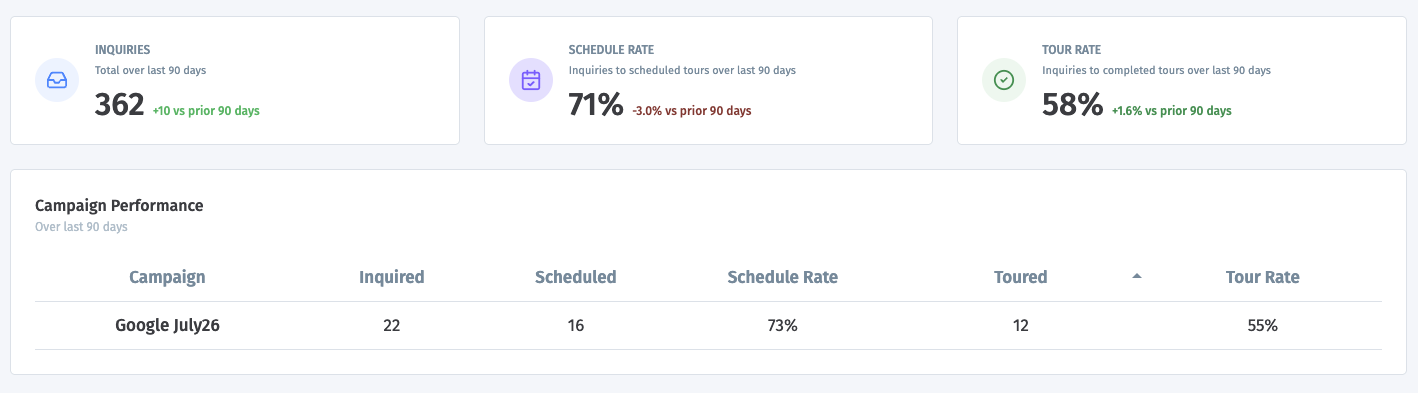
If no recent inquiries have a campaign, the Campaign Performance table is hidden.
Unit Performance
The Campaign Performance table on a unit's Performance tab shows campaign results for the current leasing cycle.
Prospect details
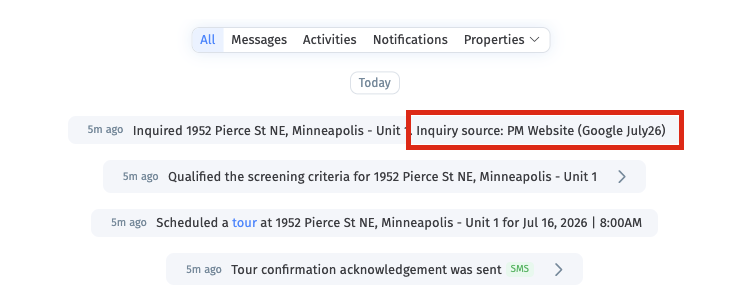
Campaigns appear beside the inquiry source on prospect cards and in the prospect timeline.
Tips
Use one campaign value consistently for the same campaign.
Use different values when you want to compare two campaigns, landing pages, or ad variations.
Keep values short and readable. They will be easier to recognize in reports.
Campaign tracking only works when the renter reaches Showdigs through a link or widget that includes the
rvalue.